
Add a signature appearance and initials in My Profile for use with document fields.
Before you begin
Sign in to your own account. If you plan to upload images, prepare PNG or JPG files no larger than 2 MB each. A clear, high-contrast image is easier to read; the page recommends a transparent background.
Upload a signature or initials image
- Select your profile entry to open My Profile.
- Find Signature & Initials.
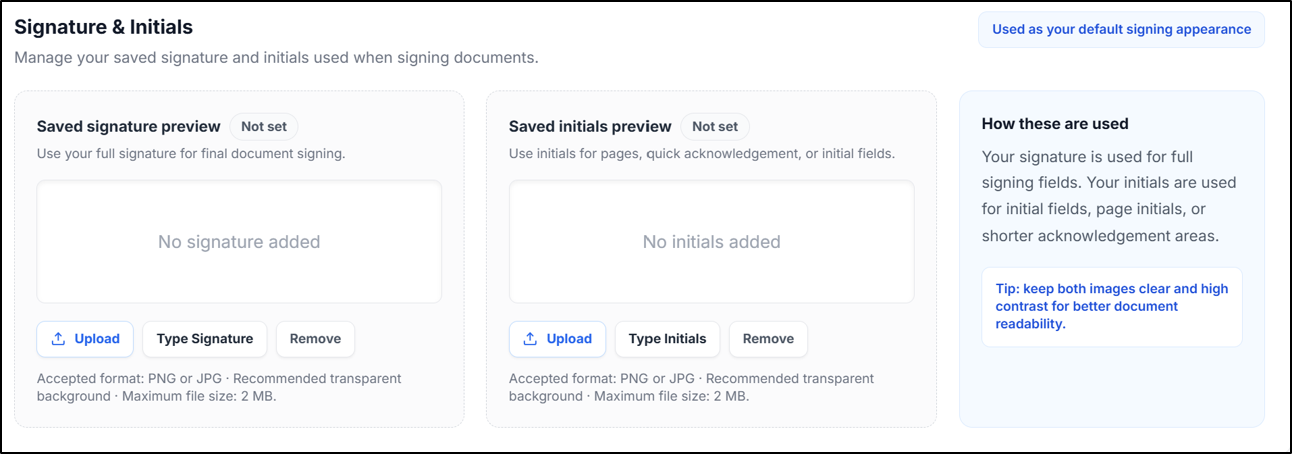
- Under the saved signature preview, select Upload to choose your signature image.
- Under the saved initials preview, use its separate Upload control to choose your initials image.
- Review the previews to check that each image is in the correct place.
- Select Save Profile, then reopen the profile to confirm your changes were retained.
Explore a typed signature
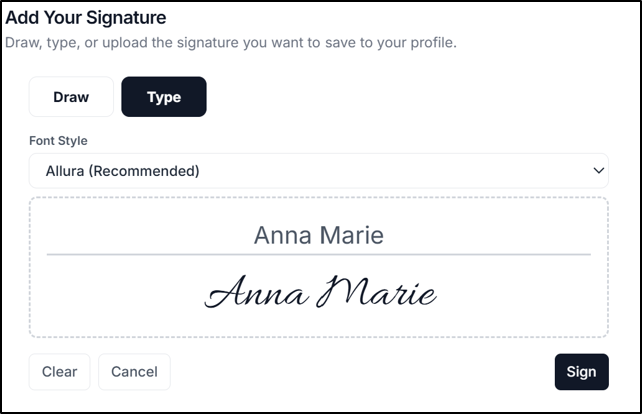
Select Type Signature to open Add Your Signature. The Type tab provides a text field and a Font Style selector. A Draw tab is also available. Use Cancel to leave the editor without applying a signature.
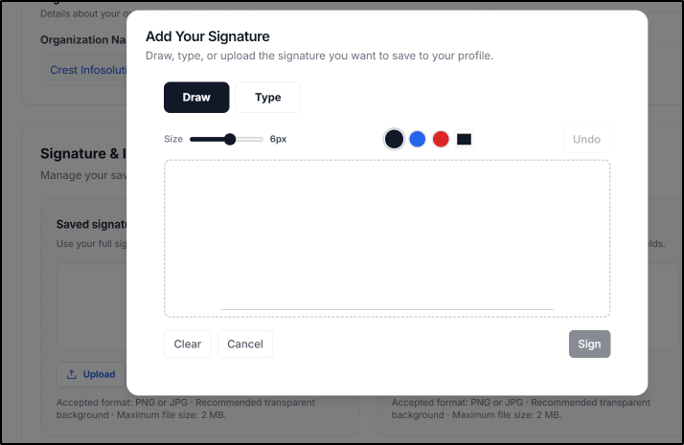
 If you have not saved a signature or initials in My Profile, you can save them while signing a document. When you create your signature or initials during signing, select the option to save them as your default. After you sign the document with that option selected, SignDex automatically adds the saved signature or initials to your profile for future use.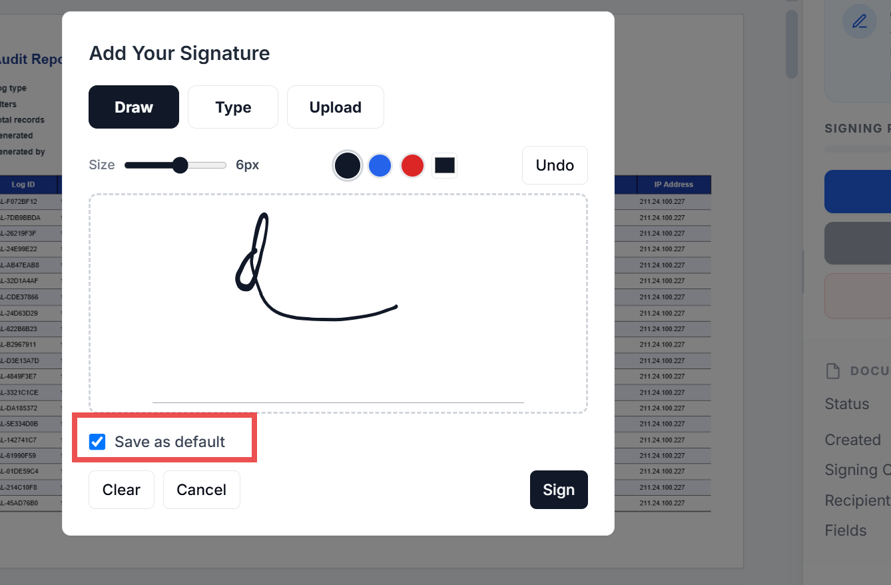
Understand how the appearances are used
The profile describes the full signature as the appearance for signing fields, and initials as the appearance for initial fields or shorter acknowledgement areas. Setting up these appearances prepares your profile; document signing is a separate workflow.
If an image cannot be used
Check the PNG/JPG format and 2 MB limit. Use a clearer image if the preview is difficult to read.