
Create API credentials in Organization Profile → API Tokens for a server-to-server integration with SignDex. The portal describes these credentials as a key and secret pair.
Before you begin
- Sign in as an organisation owner or administrator. API Explorer specifies this requirement for credential creation.
- Confirm you are working in the intended organisation and environment.
- Decide what access the integration needs and whether its credentials should expire.
- Have an approved secret-storage location ready for the credentials.
Create a token
- Open the navigation menu and select Organization Profile under SETTINGS.
- Select the API Tokens tab.
- Enter a descriptive Token name, such as CRM document integration.
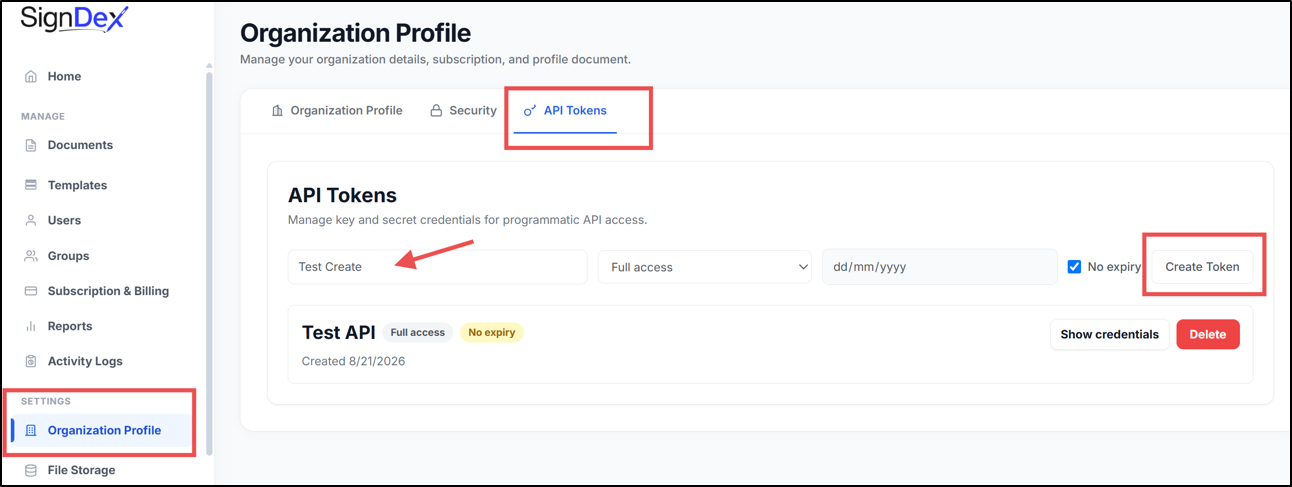
- Choose the appropriate access option from the dropdown:
Option When to consider it Read only The integration needs to retrieve information. Document API only The integration is intended to work with document APIs. Full access The integration requires broader API access. Choose the narrowest option that meets the integration’s needs, and check its required endpoints in API Explorer. The dropdown names do not provide a complete endpoint-by-endpoint permission matrix.
- Set the expiry choice. No expiry is selected by default in the form. To set an expiration date, clear No expiry and enter a date in the date field.
- Review the name, access option, and expiry choice.
- Select Create Token.
- Follow the resulting credential display instructions and store the key and secret securely for the integration.
Find your organisation identifier
Return to the Organization Profile tab and locate ORGANIZATION UUID. API Explorer uses this identifier for the X-Org-Id header on organisation-scoped requests. It is separate from the API key and secret.
Check your setup
Use API Explorer to review the integration’s endpoints and authentication requirements. A successful credential-creation step does not by itself confirm that every endpoint is permitted by the selected scope.
If creation fails
Confirm your account is an owner or admin, check the selected organisation, and review any field validation or error message. If the problem persists, provide the error text to your administrator or SignDex support without including the key or secret.
Protect the credentials
Keep the secret out of website code, public repositories, screenshots, and support messages. Use your organisation’s approved server-side secret storage.