
Use the completed document viewer to obtain the Certificate of Completion offered for a workflow.
- Obtain Certificate of Completion file from the Downloaded ZIP folder
- Go to ACTION session to download Certificate of Completion file only
Before you begin
You need access to a document marked COMPLETED.
Download the certificate
- Open Documents.
- Select Completed and locate the document you need.
- Select View in its row.
- Confirm the document title and COMPLETED status at the top of the viewer.
- Find the ACTIONS panel.
- Select Download Certificate of Completion.
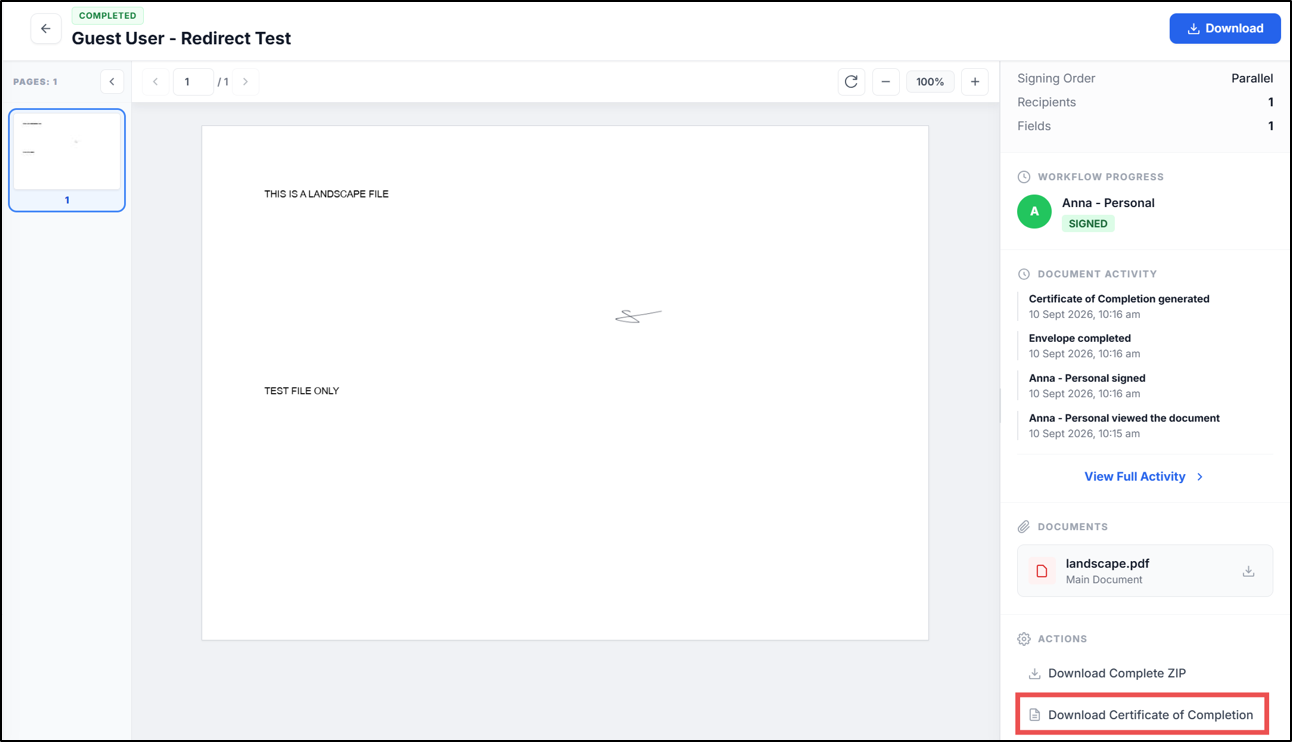
- Locate the download using your browser’s downloads list and open it.
Check your result
Check that the downloaded certificate corresponds to the intended workflow before storing it with the document. If the download fails or the certificate appears to refer to a different workflow, contact SignDex support with the document title and a description of the issue.
Keep the document with its certificate
The certificate and the completed document are separate download choices in the viewer. Download the completed document as well when you need both records. This procedure covers retrieving the certificate; it does not describe validating the PDF’s digital signatures in a PDF reader.