
Find a completed workflow and use its download controls to save a local copy.
Before you begin
Sign in with an account that can access the document. Confirm that the workflow is marked COMPLETED.
Download from the document list
- Open Documents.
- Select Completed.
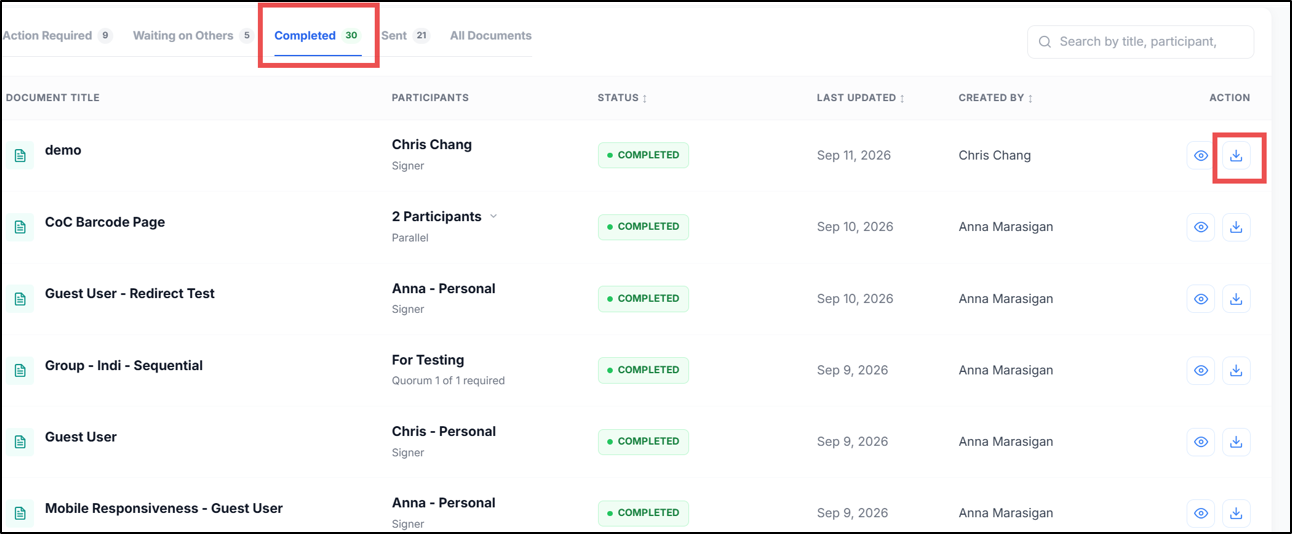
- Locate the document by its title. Use search if needed.
- Confirm its status is COMPLETED.
- Select Download in the document’s row.
- Use your browser’s download controls to locate the saved file.
Use the document viewer
- Select View beside the completed document.
- To use the viewer’s download menu, open More options and select Download.
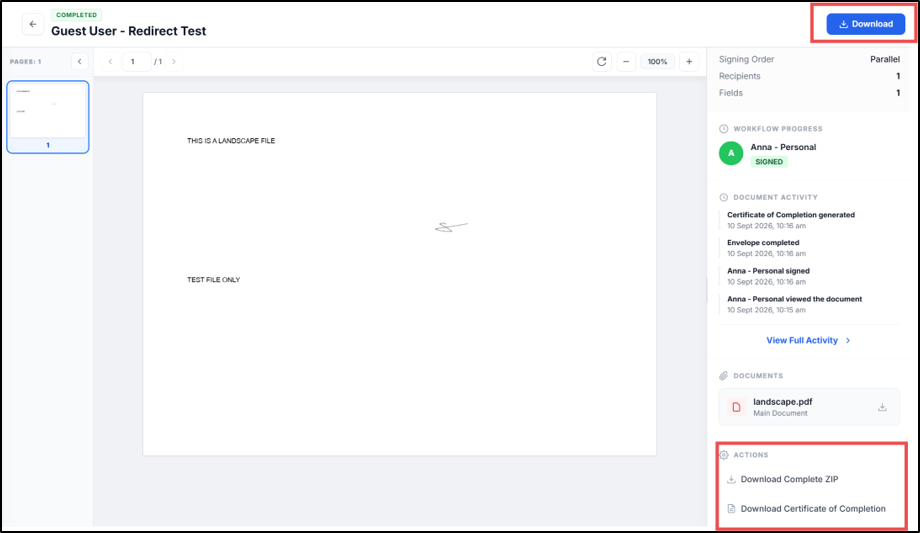
- Select Download Complete ZIP under ACTIONS to download all signed documents in the workflow and the Certificate of Completion (COC) together in one ZIP file.
- After downloading, extract the ZIP file to access the signed documents and COC. Check that the files correspond to the workflow you selected.
If no download appears
Check the browser’s downloads list for a failed or blocked download. Confirm the workflow is completed and that you opened the correct document. If the control is unavailable, contact your organisation administrator or SignDex support with the document title and error text.