
Use the Documents page to locate a workflow, check its status, and see available actions.
Before you begin
Sign in with the account associated with the document. The list reflects the documents available to that account.
Find a document
- Select Documents from navigation.
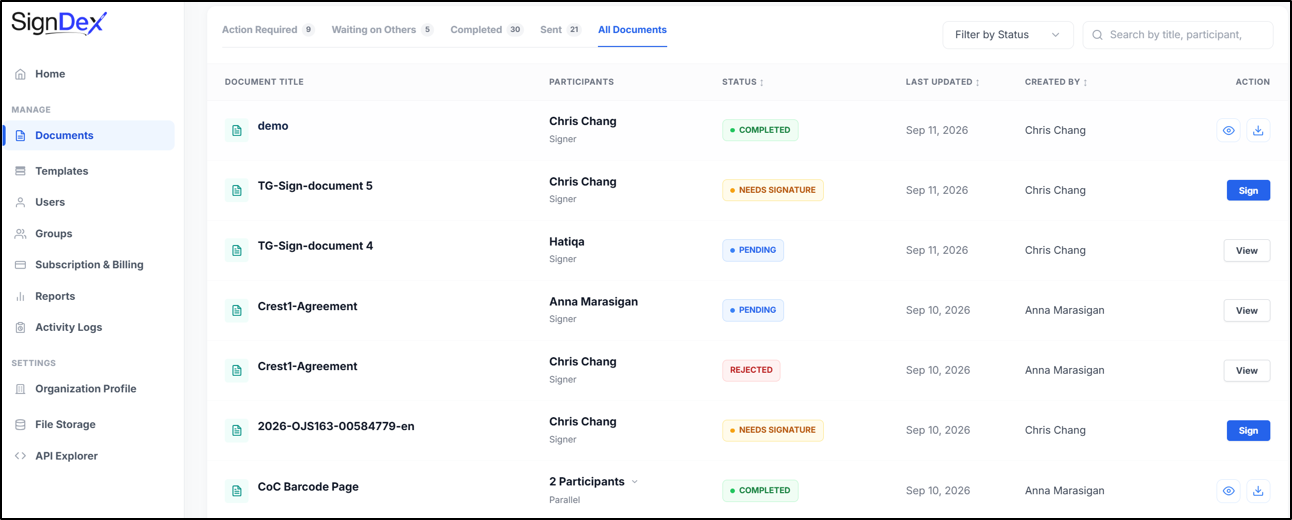
- Choose Action Required, Waiting on Others, Completed, Sent, or All Documents, depending on what you need to find.
- Use the search box to narrow the list.
- Use Filter by Status if you need a particular status.
- Review the document title, participants, status, last updated date, and creator.
- Where available, select STATUS, LAST UPDATED, or CREATED BY to change the sort order.
- Select the available row action, such as View or Sign.
Understand the document tabs
The tabs above the document list help you choose which documents to view. A tab groups documents by your involvement or their progress; the status column shows the state of each individual document. You can use search and Filter by Status to narrow the selected list.
Tab What it shows When to use it Action Required Documents awaiting an action from you. Use this tab to find documents you need to review or sign, according to your assigned role. Waiting on Others Documents awaiting an action from another participant. Use this tab to follow workflows that are waiting for others to act. Completed Documents whose workflows have finished. Use this tab to view completed documents and access available downloads. Sent Documents you have sent to participants. Use this tab to track the workflows you initiated and check their current status. All Documents All documents available to your account across the different workflow states. Use this tab for a broader search, then narrow the list with search or Filter by Status. Read the status with the participant details
Use the status descriptions below to understand the document’s progress. Read the participant details alongside the status to identify who needs to act.
Status Description What to do NEEDS SIGNATURE The document is awaiting your signature. Select Sign to open and review the document. PENDING The workflow is still awaiting a participant action. Select View and review participant details to see who needs to act. COMPLETED The document workflow has finished. View the completed document or use the available download control. REJECTED A participant has rejected the document. Select View to review the document and contact the sender about the next steps. Check your progress
You should be able to locate the document and identify its current status. For longer lists, use the page controls and Rows per page options.
If the document is missing
Switch to All Documents, remove restrictive filters, and clear or shorten your search. Confirm you are using the intended account. If it is still missing, ask the sender to check the recipient details.